
How to Safely Install GB WhatsApp APK on Android
GB WhatsApp is a widely used alternative to the official WhatsApp app, offering advanced features such as custom themes, enhanced privacy controls, and improved media sharing. Installing GB WhatsApp correctly ensures a smooth experience while keeping your data safe. This guide explains each step in detail, including potential issues and best practices.
Step 1: Download the Latest GB WhatsApp APK
Always download GB WhatsApp APK from a trusted source. Avoid third-party websites or unofficial mirrors that may include malware or tampered versions. Check the version number and file size to ensure authenticity. GB WhatsApp generally supports Android 5.0 and above.
🔹 Tip: You can visit our GB WhatsApp APK Download Page.
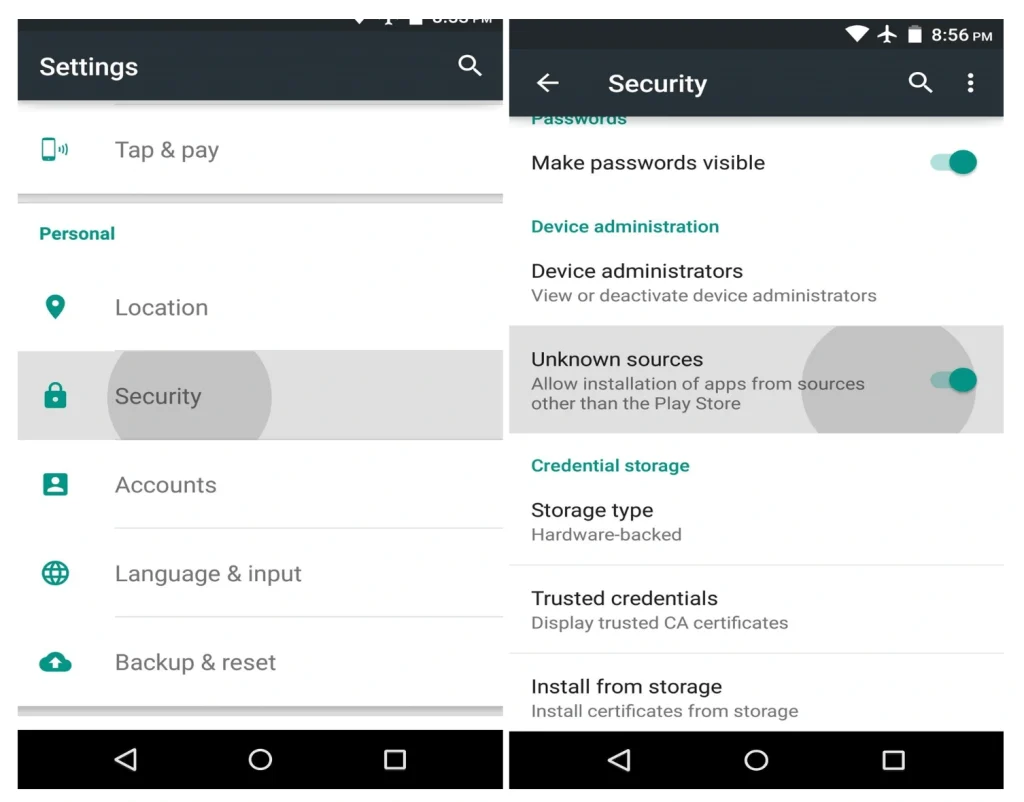
Step 2: Enable Installation from Unknown Sources
Android blocks apps from unknown sources by default. To install GB WhatsApp:
- Open Settings → Security → Install Unknown Apps.
- Select your browser or file manager and enable Allow from this source.
On Android 8.0+ devices, this permission is app-specific, so you must grant it to the app used to download the APK. Disable it after installation to maintain security.
Step 3: Install the APK
Locate the downloaded GB WhatsApp APK in your storage and tap Install. The installation usually completes in a few seconds.
Common issues:
- “App not installed”: Check storage, ensure no conflicting WhatsApp installation with the same phone number.
- “Parse error”: APK may be corrupted; re-download the correct version.
Step 4: Verify Your Phone Number
After installation, open GB WhatsApp and enter your phone number. You’ll receive a verification code via SMS. Input the code to activate your account.
🔹 Pro Tip: If SMS doesn’t arrive, select the Call Me option. Ensure a stable network connection.
Step 5: Restore WhatsApp Chat Backup
GB WhatsApp allows restoring backups from Google Drive or local storage:
- Ensure your previous WhatsApp backup is up-to-date.
- During GB WhatsApp setup, choose Restore Backup.
- Confirm to import your previous messages and media.
⚠️ Always back up your chats before switching apps to avoid data loss.
Step 6: Configure Permissions and Privacy Settings
GB WhatsApp may request access to contacts, media, microphone, and storage. Grant these permissions to unlock full functionality. Recommended privacy settings:
- Hide online status and blue ticks
- Enable app lock with PIN, pattern, or fingerprint
- Customize notifications per contact
These adjustments improve both usability and privacy.
Troubleshooting Common Problems
| Problem | Solution |
|---|---|
| App fails to install | Enable Unknown Sources, clear cache, check storage |
| Verification code not received | Use “Call Me”, check network connection |
| Backup restore fails | Ensure backup exists and is compatible with current version |
| App crashes | Clear cache, reinstall latest GB WhatsApp APK |
You May Also Like
- Learn how to protect your account: GB WhatsApp Security & Risk Guide
- Common issues answered: GB WhatsApp FAQ